Swift30Days-CandySearch 开发总结
Swift30Projects-05-CandySearch 的一些经验总结。
Color 设置
在这个项目里我遇到的一个大问题就是在NavigationController - UITableViewController - UITableViewController 其中还包括 UISearchController 的结构中各种颜色设置问题。搜索了很多,也摸索了很多,在这里总结一下。
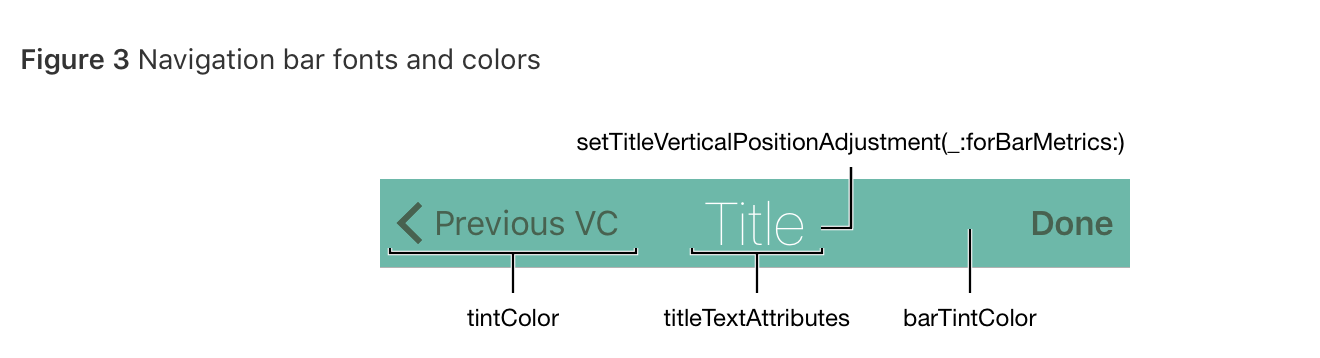 这张图可以清晰的看出一个 navigation Bar 上面的各种视图包括:返回按钮,背景,标题,分别由哪种属性定义
代码方法:
当你的 App 具有统一的 UI 的时候,可以直接在 AppDelegate.swift 的
func application(_ application: UIApplication, didFinishLaunchingWithOptions launchOptions: [UIApplicationLaunchOptionsKey: Any]?) -> Bool 方法中进行全局设置,当然你也可以在子视图中通过 self.navigationController.navigationBar.tintColor 类似这样子的方式进行单独的定义,若没有单独定义,那么子视图的设置将会与父视图一致。
在本 App 中,我添加了一个 UIColor 的 extension
extension UIColor {
    static func candyGreen() -> UIColor {
        return UIColor(red: 67/225, green: 205/255, blue: 135/255, alpha: 1)
    }
然后,进行颜色的设置:
    func application(_ application: UIApplication, didFinishLaunchingWithOptions launchOptions: [UIApplicationLaunchOptionsKey: Any]?) -> Bool {

        UINavigationBar.appearance().barTintColor = UIColor.candyGreen()
        UINavigationBar.appearance().tintColor = .white
        UINavigationBar.appearance().titleTextAttributes = [NSAttributedStringKey.foregroundColor : UIColor.white]

        return true
    }
因为 App 中有一个 UISearchController, 所以需要对 SearchBar 的颜色进行设置,其中 barTintColor 代表搜索条的背景颜色, tintColor 代表🔍栏处于编辑状态时,Cancel 按钮,光标,以及 scopeButton的颜色,在本 App 中设定为白色,但此时有一个问题,就是🔍栏的光标设为白色时,打字就无法显示光标,这显然很不友好,把它设为 barTintColor 的颜色是一种友好的解决方案,于是在上面代码的结尾处再加上
 UISearchBar.appearance().barTintColor =  UIColor.candyGreen()
 UISearchBar.appearance().tintColor = UIColor.white
 UITextField.appearance(whenContainedInInstancesOf: [UISearchBar.self]).tintColor = UIColor.candyGreen()
StoryBoard设置:
与代码方法比较,在 StoryBoard 中设置比较简单,但是不如代码直观,而且似乎有些属性的颜色无法在 StoryBoard 设置,例如 navigationItem 的 title, 可能因为它不是一个视图吧?
Navigation Bar 背景色:Navigation Bar -> Bar Tint
Navigation Bar 返回按钮:Navigation Bar -> View -> Tint
至于 UISearchBar, 由于本 App 是直接写代码通过 UISearchController 创建,在 StoryBoard 里也无法设置
Search Related
在这个 project 中重点学习了在 TableView 中添加搜索功能的一些方法实现
- searchController 的设置:
let searchController = UISearchController(searchResultsController: nil)

override func viewDidLoad() {

        super.viewDidLoad()

        searchController.searchResultsUpdater = self
        searchController.dimsBackgroundDuringPresentation = false
        definesPresentationContext = true
        tableView.tableHeaderView = searchController.searchBar
}-
在 tableView 的 dataSource 方法中 通过
searchController.isActive来决定 cell 的配置
func updateSearchResults(for searchController: UISearchController)用来实时显示搜索结果 *
func searchBar(_ searchBar: UISearchBar, selectedScopeButtonIndexDidChange selectedScope: Int)用来进行分类搜索,其中不要忘记设置
searchController.searchBar.delegate = self- 一个重要的环节就是当 TableView 展示出正确的搜索结果,点击 cell, 展示 DetailViewController 的时候,记得在
prepare(for segue)方法中使用搜索后的结果,因为此时indexPath已经完全不一样